GuidedSMILE Digital Rx With 3D Verify
- Home
- Products
- GuidedSMILE
- Rx & Scheduling Forms
- GuidedSMILE Digital Rx With 3D Verify
Important Instruction – please follow exactly
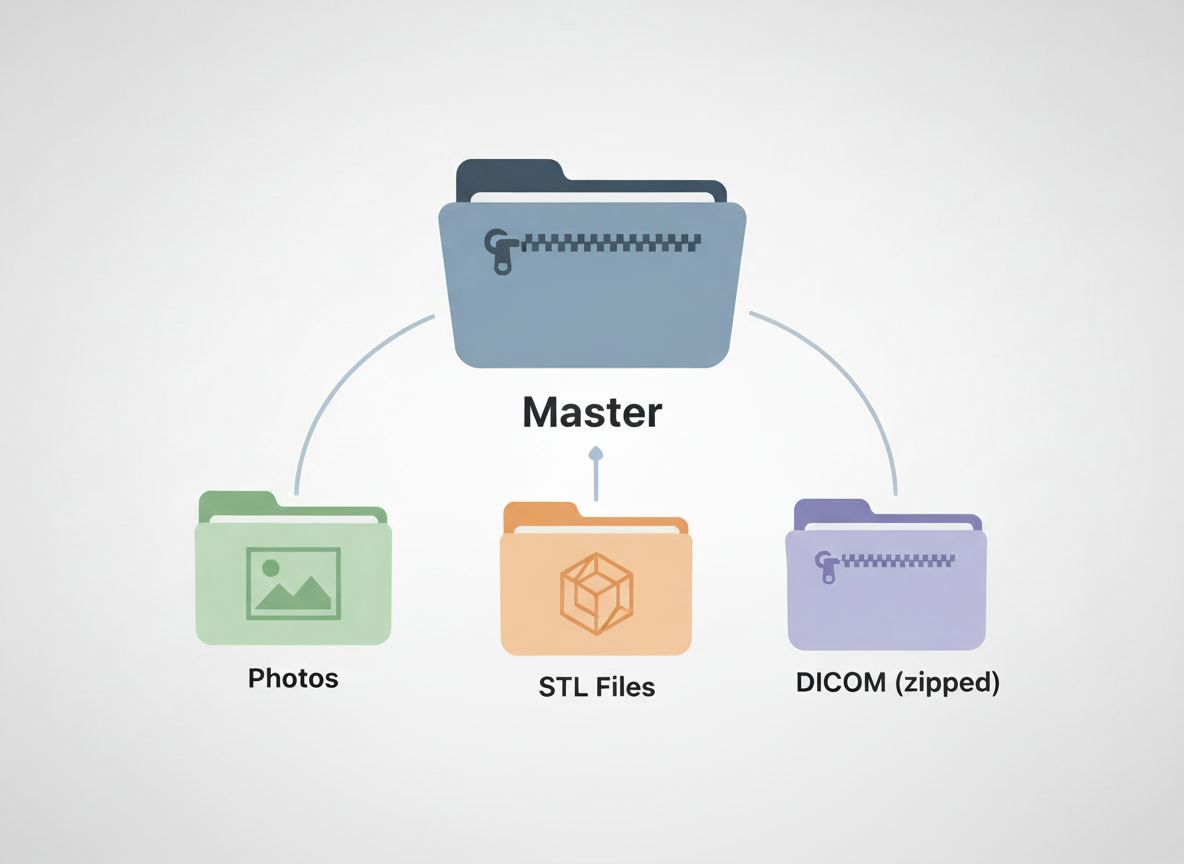
Step 1: Complete Doctor and Patient Info and drag and drop you zipped folder (image to the right). Then, wait for an evaluation of your records for accuracy. Review the warnings and approve or replace with better files (new zipped folder if new files).
Step 2: Complete the Rx below and submit
Step 3: On the next page, book your meeting!