
Overview
Digital impressions for crowns are an innovative method of capturing precise, 3D images of a patient’s mouth using advanced scanning technology. Unlike traditional impressions, which require messy molds, digital impressions are quick, comfortable, and highly accurate. The data gathered is used to create custom crowns that fit seamlessly, ensuring improved comfort and function for the wearer.
Technology & Materials
- IOS Scanner
- Hemostatic agent
- Cord (sizes #00 and #02)
- Compressed air
Workflow Steps for Digital Impressions for Crowns
| Step | Instructions | Image |
| 1. |
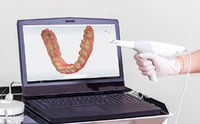
Set up the patient with IOS system. |
 |
| 2. |
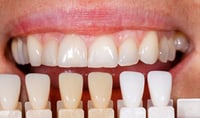
Select tooth, implant type, shade, delivery date and lab choice. When sending information to the lab make sure to include:
|
 |
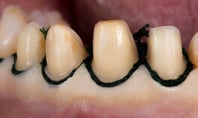
| 3. | Optional: If parts of the margin are subgingival, place retraction cord and/or hemostatic agent. |
 |
| 4. |
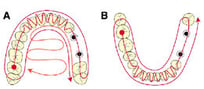
Scan both arches using the protocol specified by your IOS and the following recommendations:
|
 |
| 5. |
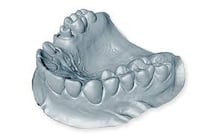
Use one of two methods to scan the crown prep area:
|
|
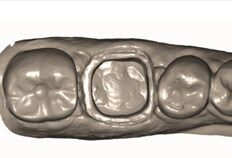
| 6. | Ensure that the scan covers the crown prep area entirely, including the margin line and contact points. | 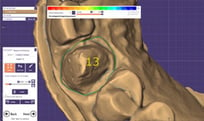 |
| 7. | Ask the patient to bite and scan 3-4 teeth until the upper and lower arches snap to the bite scan. | 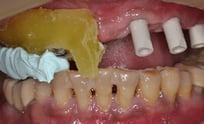 |
| 8. | Optional: Capture an HD photo of the crown prep to send to ROE to help set the margin. | 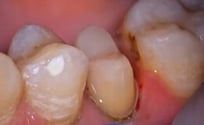 |
| 9. |
Verify all information is correct and send to the laboratory. Margins are clearly captured: ✔️ No voids or bubbles present ✔️ No tears or pulls in material ✔️ Adequate thickness of material ✔️ Clear impression of opposing arch ✔️ Proper occlusal registration |
 |
|
Important: For proper occlusal registration, avoid using too much bite material, which can prevent doctors from verifying correct occlusion. Use just a single rope of bite material applied to the occlusal surfaces with a large syringe, then have the patient bite into it. This allows you to check that teeth are in proper occlusion while the bite material is setting. If you’re working on a case that doesn’t have adequate centric stops, consider using bite rims or a full-arch impression to capture whatever centric stops are available. If you’re uncertain about a bite registration and concerned it might be mounted incorrectly, have it mounted in the lab and check it before fabrication proceeds so that both you and the lab know it’s correct. |
||
Additional Resources
For more information concerning Crown & Bridge Solutions:
- Fixed Restorations Product Page
- Crown & Bridge Solutions - Your Guide to ROE's Fixed Restorations
- More Crown & Bridge Workflow's
Contact Information
For help with Crown & Bridge Solution's for your next case, contact ROE Dental Laboratory:
- Phone: (216) 663-2233
- Email: info@roedentallab.com